How to Add Your WorkJam Schedule to Your Calendar

Founder of PicCal. Dad of two. Built the app because he was tired of typing 20 soccer games into his calendar by hand.
Quick Answer
WorkJam has no way to sync or export your shifts to a personal Apple, Google, or Outlook calendar. There's no iCal feed and no export file. The reliable fix on an iPhone: screenshot your schedule, then use a calendar scanner like PicCal to read every shift and add them all to your calendar in one tap. A full week takes less than a minute.
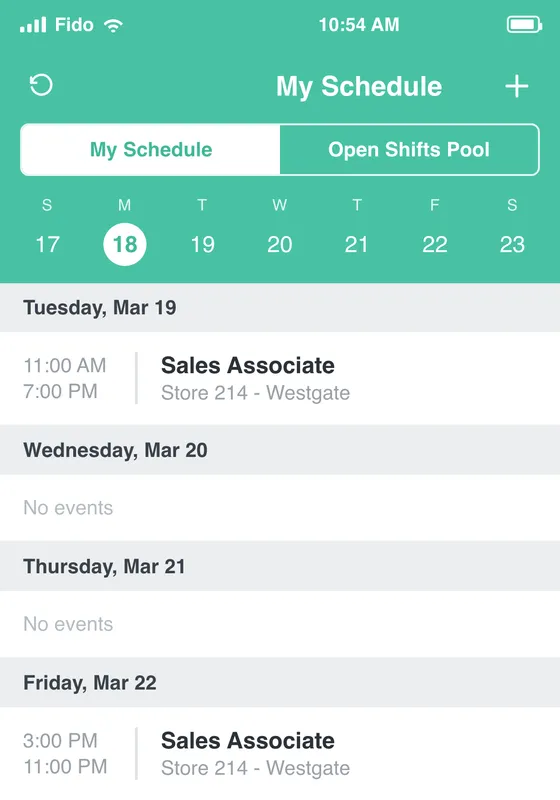
A schedule like this is all PicCal needs.
Screenshot it, and every shift, with its date, times, and location, lands on your calendar in one tap.
Role and store shown are examples.
Does WorkJam sync to your calendar?
No. This is the clearest gap of any major scheduling app.
WorkJam is a frontline workplace app used by retail, grocery, hospitality, and warehouse employers. You use it to see your schedule, bid on open shifts, swap or offer shifts, set availability, message your team, and complete tasks or training. It's a capable app for running your work life. It has no feature for getting those shifts onto your personal calendar.
Some scheduling apps at least give you an iCal feed link you can subscribe to. WorkJam doesn't. There's no "add to calendar" button, no .ics export, and no calendar feed anywhere in the app. Its integrations point the other direction, into back-end workforce systems like UKG, Blue Yonder, and ADP, not out to your Apple or Google calendar. Employees have called this out in app-store reviews for years, with blunt lines like "there is no way to sync with your actual calendar."
So if you want your WorkJam shifts sitting next to the rest of your life, you have to move them over yourself. The good news: it takes about a minute a week.
What WorkJam does and doesn't do
- ✓ View your schedule and shift details
- ✓ Bid on open shifts, swap and offer shifts
- ✓ Set availability and request time off
- ✓ Messaging, tasks, and training
- ✗ Add a shift to Apple or Google Calendar (no feature)
- ✗ Any calendar feed or .ics export at all
Why put shifts on your own calendar
On a frontline job your schedule can change week to week, and it lives in an app your manager controls. That's fine at work and useless everywhere else, because your shifts never sit alongside the rest of your week. You can't tell at a glance that Saturday's mid-shift overlaps a family thing, and nobody you live with can plan around a schedule they can't open.
Copy the shifts onto your own Apple or Google Calendar and that flips. They land next to class, appointments, and everyone else's plans, sync to your watch and laptop, and remind you before you're due in. Your calendar becomes the one place that holds everything, instead of one more app to keep checking.
The fastest way: screenshot and scan
PicCal is an iPhone app that turns a photo or screenshot of a schedule into calendar events. Parents use it for sports seasons, but it doesn't care what the schedule is, and a week of WorkJam shifts, laid out day by day, is an easy read for it.
Start to finish, here's how it goes:
- Screenshot the week. In WorkJam, open My Schedule and screenshot it (side button and volume-up at once). Grab each week you want to add.
- Hand it to PicCal. Open PicCal and choose that screenshot from your camera roll.
- Check the shifts. PicCal shows every shift it found with the day, start time, and end time. Adjust anything that reads wrong.
- Point it at the right calendar. Choose iCloud, Google, or Outlook as the destination.
- Add the batch. One tap puts every shift on your calendar and syncs it across your devices.
A frontline week is usually a handful of shifts, and it scans in seconds. Want a month in one go? Screenshot several weeks and run them together.
If screenshots are blocked on your device
WorkJam shows a privacy screen that blanks the app when you switch away from it, so you may have heard it "blocks screenshots." On a personal iPhone, it doesn't. That privacy screen only kicks in when the app loses focus, not when you capture the screen you're actually looking at, so a normal screenshot of your schedule works.
The one case where a screenshot won't work: a company-managed phone where your employer's IT policy disables screenshots. That control is usually there on purpose, so treat it as off-limits unless you've checked. If your workplace is fine with you exporting your own schedule, you can photograph the WorkJam screen with a second phone or a camera, and PicCal reads that picture the same way it reads a screenshot. If you're not sure it's allowed, the safe route is to enter the shifts into your calendar by hand, or ask whether exporting your schedule is okay first.
Add shifts to Apple Calendar
Apple Calendar already lives on your iPhone, so there's nothing to connect first.
- Screenshot your week in WorkJam.
- Open PicCal and select the screenshot.
- Review the extracted shifts.
- At the destination step, choose your iCloud calendar (or whichever one you keep on your phone).
- Tap to add. The shifts land in the Apple Calendar app and sync to your iPad, Mac, and Apple Watch.
Add shifts to Google Calendar
If a lot of your life runs on Google Calendar, you can send your WorkJam shifts straight there from an iPhone, once your Google account is connected to iOS.
- Connect your Google account first. On current iOS: Settings → Apps → Calendar → Calendar Accounts → Add Account → Google, with Calendars turned on. On older iOS it's under Settings → Calendar → Accounts.
- Screenshot your week in WorkJam and open it in PicCal.
- Review the shifts, then set your Google calendar as the destination.
- Tap to add. The shifts save to Google Calendar and appear on the web and on any Android phone or tablet signed into that account.
Android note: PicCal isn't on Android yet, so from an Android phone you'd type the shifts into Google Calendar yourself. On an iPhone with Google connected, the screenshot route is the quick path and needs no setup beyond that one-time account link.
If you'd rather do it by hand
No app required for this one. It's just the slow lane.
In your calendar, add a new event per shift and type the date, start time, and end time. Give it a title you'll recognize mid-week, like "Work — open" or "Floor shift," and watch the AM and PM on early opens and late closes, since that's where hand entry usually slips. At about two minutes a shift, a five-shift week runs roughly ten minutes, and you're redoing it every time your schedule changes.
| Method | Time for a week | Works with WorkJam? | Error risk |
|---|---|---|---|
| Screenshot + PicCal | Under a minute | Yes | Low (you review first) |
| Calendar feed / .ics | — | No (WorkJam has none) | — |
| Manual entry | ~10 min | Yes | High (AM/PM typos) |
WorkJam is unlikely to add calendar export any time soon, so this is the practical way to keep your shifts and your life in one view. Screenshot the week, scan it, done. When the schedule changes, do it again.
How PicCal works
Snap
Photo or screenshot
Review
Check the details
Done
On your calendar
Skip the manual entry.
PicCal turns photos and screenshots into calendar events in seconds.
Frequently Asked Questions
Does the WorkJam app sync with Apple or Google Calendar?
No. WorkJam has no calendar export, no .ics file, and no subscribe-by-URL feed. It connects to your employer's back-end scheduling system, not to your personal Apple, Google, or Outlook calendar. To get your shifts onto your own calendar, the reliable way is to screenshot your schedule and add every shift with a calendar scanner like PicCal.
Can I export my WorkJam shifts to a calendar file?
No. Unlike some scheduling apps that give you an iCal feed link, WorkJam doesn't offer any calendar file or export. Employees have flagged this in app reviews for years. Screenshotting your schedule and scanning it is the fastest way around it.
WorkJam won't let me screenshot on my work phone. What can I do?
On a personal iPhone you can screenshot your schedule normally. WorkJam's privacy screen only blanks the app when you switch away from it, not when you capture the screen you're looking at. If you're on a company-managed device where IT has disabled screenshots, that block is usually there on purpose, so check that exporting your own schedule is allowed before working around it. If it's fine, photograph the WorkJam screen with a second phone or camera and PicCal reads that photo like a screenshot. If you're not sure, add the shifts to your calendar by hand instead.
What's the quickest way to get a WorkJam week onto my iPhone?
Open My Schedule in WorkJam and screenshot it, then open PicCal and choose that screenshot. PicCal pulls out each shift with its day and times for you to check, and one tap saves the whole week to your iPhone calendar. Set iCloud, Google, or Outlook as the destination first.
Can I send my WorkJam shifts to Google Calendar?
Yes, from an iPhone. As long as your Google account is connected in your iPhone's Calendar settings, you can set Google as PicCal's destination, and the shifts save there and show up in Google Calendar on the web and on Android. PicCal isn't on Android yet, so on an Android phone you'd add the shifts to Google Calendar by hand.
I pick up and swap shifts a lot in WorkJam. Will my calendar update?
No. This is a one-time import, not a live sync, so your calendar won't change on its own when you claim an open shift or swap one. When your schedule changes, screenshot the new week and scan it again, then remove any shift that moved. Because WorkJam schedules shift around often, a quick weekly re-scan keeps your calendar honest.
Keep Reading
Did this answer your question?
Thanks for the feedback!
Still have questions? We'd love to chat.
hello@piccal.ai