How to Add Your Starbucks Partner Hours Schedule to Your Calendar

Founder of PicCal. Dad of two. Built the app because he was tired of typing 20 soccer games into his calendar by hand.
Quick Answer
The Starbucks Partner Hours app shows your shifts, but it has no confirmed, official way to sync them to your personal Apple or Google Calendar. The reliable fix on an iPhone: screenshot your weekly schedule, then use a calendar scanner like PicCal to read every shift and add them all to your calendar in one tap. A full week takes less than a minute.
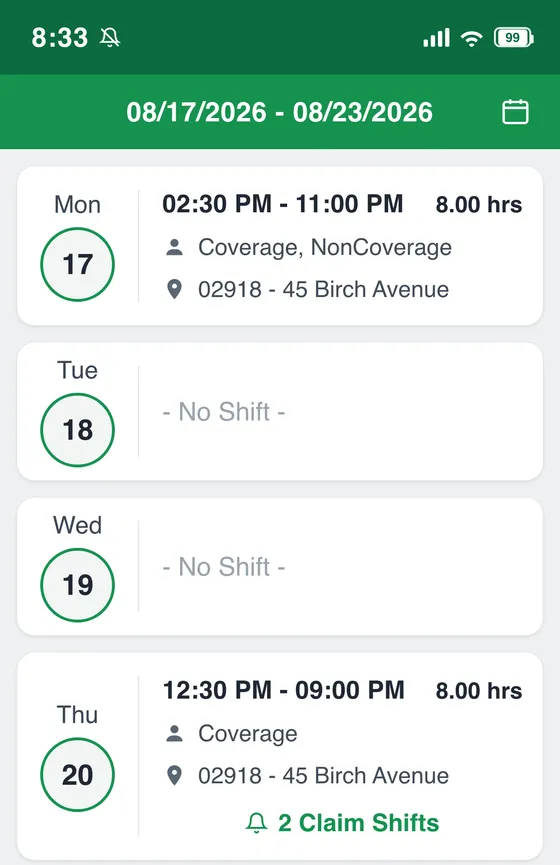
A weekly schedule like this is all PicCal needs.
Screenshot it, and every shift, with its date, times, and hours, lands on your calendar in one tap.
Store number and address shown are examples.
Does Partner Hours sync to your calendar?
Short answer: not in any way you can rely on.
Starbucks Partner Hours (also called SBUXPartnerHrs) is the app baristas and shift supervisors use to view their schedule, request time off, set availability, and claim or swap shifts in the Shift Marketplace. It runs on the Blue Yonder workforce-management platform. It is very good at showing you when you work. It is not built to put those shifts on your personal calendar.
You'll find plenty of posts online claiming there's a "sync calendar" button, or that the calendar icon in the top-right of the schedule screen exports to Google or Apple Calendar. Be careful with those. They come from unofficial fan sites, and Starbucks and Blue Yonder don't document a native calendar export or a subscribe-by-URL feed for this app. That icon in the header appears to be a week and date picker, not an export button.
The strongest evidence that native syncing is missing or inconsistent: partners have built their own tools to scrape their Starbucks schedule into Google Calendar, and there are step-by-step TikToks walking people through workarounds. Nobody builds a workaround for a button that already works.
What Partner Hours does and doesn't do
- ✓ View your schedule, week by week
- ✓ Request time off and set availability
- ✓ Claim, offer, and swap shifts in the Marketplace
- ✓ Push notifications when your schedule changes
- ✗ One-tap "add this shift to Apple Calendar" (not confirmed)
- ✗ Automatic ongoing sync to Google Calendar (don't count on it)
Why put shifts on your own calendar
Living inside a separate work app has a cost. Your shifts sit in one place and the rest of your life sits in another, so nothing lines up. You can't see at a glance that your Thursday close collides with a friend's dinner, and you can't share your week with a partner or roommate who plans around you.
Once your shifts are on your Apple or Google Calendar, they show up next to everything else, sync to your watch and laptop, and set their own reminders. That's the whole point of getting them out of Partner Hours and onto the calendar you actually check.
The fastest way: screenshot and scan
PicCal is an iPhone app that reads a photo or screenshot of any schedule and turns it into calendar events. It was built for parents typing in soccer seasons, but a week of Starbucks shifts is the exact same problem: a grid of dates and times you don't want to enter by hand.
Here's the whole flow:
- Screenshot your week. Open your schedule in Partner Hours and take a screenshot (press the side button and volume-up together). Grab each week you want to add.
- Open PicCal and pick the screenshot. Select the image from your camera roll.
- Review the shifts. PicCal lists every shift it found with the date, start time, and end time. Fix anything that looks off right there.
- Choose where they go. Pick your destination calendar (iCloud, Google, or Outlook) so the shifts land in the right place.
- Add them all. One tap. Every shift is on your calendar and syncs to your other devices.
A typical Starbucks week is about five shifts, and it scans in seconds. If you want a month loaded at once, screenshot four weeks and run them through together.
Add shifts to Apple Calendar
This is the simplest case, because Apple Calendar is already on your iPhone.
- Screenshot your week in Partner Hours.
- Open PicCal and select the screenshot.
- Review the extracted shifts.
- When you choose a destination, pick your iCloud calendar (or whichever calendar you keep on your phone).
- Tap to add. Your shifts appear in the Apple Calendar app and sync to your iPad, Mac, and Apple Watch.
Add shifts to Google Calendar
You can send your shifts to Google Calendar from your iPhone, as long as your Google account is connected to iOS.
- Make sure your Google account is added on your phone. On current iOS: Settings → Apps → Calendar → Calendar Accounts → Add Account → Google, with Calendars turned on. On older iOS it's under Settings → Calendar → Accounts.
- Screenshot your week in Partner Hours and open it in PicCal.
- Review the shifts, then choose your Google calendar as the destination.
- Tap to add. The shifts save to Google Calendar and show up on Google Calendar on the web and on any Android phone or tablet signed into that account.
On an Android phone, PicCal isn't available yet, so your options are manual entry into Google Calendar or one of the community-built scraper tools. On an iPhone with your Google account connected, the screenshot route is faster and doesn't need any setup beyond that one-time account connection.
If you'd rather do it by hand
You don't need any app to do this. It's just slower.
Open your calendar, create a new event for each shift, and type the date, start time, and end time. Title it something you'll recognize on a busy week, like "Starbucks — open" or "Barista shift." At roughly two minutes per shift, a five-shift week runs about ten minutes, and you'll want to double-check the AM and PM on the early opens and late closes, which is where hand entry usually slips.
| Method | Time for a week | Needs setup | Error risk |
|---|---|---|---|
| Screenshot + PicCal | Under a minute | None | Low (you review first) |
| Manual entry | ~10 min | None | High (AM/PM typos) |
| Community scraper tools | Varies | Yes, technical | Depends on the tool |
Reading your Starbucks schedule
A Partner Hours screenshot has a few labels that trip people up. Here's what they mean, so you know what's landing on your calendar.
- Coverage is normal floor time, serving customers on the bar or register.
- NonCoverage is scheduled work that isn't counted as floor coverage, like certain training, administrative, or task time. It's still a shift you show up for, so it belongs on your calendar too.
- Claim Shifts is the Shift Marketplace, where you pick up open shifts, sometimes at other stores.
- The five-digit number next to the address (for example, 04536) is your store number, and the line under it is that store's address.
When you screenshot a week, both Coverage and NonCoverage blocks show their times, and PicCal reads them the same way. If you pick up a shift at a different store through the Marketplace, the store address travels with it, so add it to the event location so you don't drive to the wrong store on a covered shift.
The one thing to keep in mind: this is a snapshot, not a live feed. When you claim, swap, or drop a shift, screenshot the new week and scan it again to keep your calendar honest.
How PicCal works
Snap
Photo or screenshot
Review
Check the details
Done
On your calendar
Skip the manual entry.
PicCal turns photos and screenshots into calendar events in seconds.
Frequently Asked Questions
Does the Starbucks Partner Hours app sync with Apple or Google Calendar?
There is no confirmed, official way to auto-sync Partner Hours with a personal calendar. Starbucks and its scheduling vendor, Blue Yonder, don't publish a documented calendar export or subscribe-by-URL feature, and many partners find no working sync in the app. The reliable way to get your shifts onto your calendar is to screenshot your schedule and use a calendar scanner like PicCal to add every shift at once.
Isn't there a sync icon in the top-right of the schedule screen?
The calendar icon in the schedule header appears to be a week and date picker rather than an export button. A lot of third-party blog posts claim it syncs to Google or Apple Calendar, but those posts are unofficial and the feature isn't documented by Starbucks. Don't count on it. Screenshotting your week and importing it takes less than a minute and works every time.
How do I add my Starbucks shifts to my iPhone calendar?
Screenshot your weekly schedule in Partner Hours, open PicCal, and select that screenshot. PicCal reads every shift with its date and time, you review the list, and one tap adds them all to your iPhone calendar. Pick your iCloud, Google, or Outlook calendar as the destination before you save.
Can I get my shifts into Google Calendar this way?
Yes, on an iPhone. As long as your Google account is connected in your iPhone's Calendar settings, PicCal can save the shifts straight to your Google Calendar, which then syncs to Google Calendar on the web and on any Android device. On an Android phone, PicCal isn't available yet, so you'd add the shifts to Google Calendar manually.
My shifts changed after I picked up a shift in the Marketplace. Will my calendar update?
No. This is a one-time import, not a live sync, so your calendar won't change on its own when you claim, swap, or drop a shift. When your schedule changes, screenshot the new week and scan it again. Delete the old shifts first, or add the updated ones and remove the ones that moved.
What do Coverage and NonCoverage mean on my schedule?
Coverage is normal floor time serving customers. NonCoverage is scheduled work that isn't counted as floor coverage, such as certain training, administrative, or task time. Both are real shifts you're expected to work, so add both to your calendar. PicCal captures the times regardless of the label.
What happens to my schedule screenshot when I scan it?
To read a screenshot, PicCal uploads the image, pulls out the dates and times, and doesn't keep the photo afterward. Those uploads are encrypted and used only to extract your events, not stored permanently, as described in PicCal's privacy policy. PicCal only writes events to the calendar you choose and never publishes or shares your schedule. If a shift screenshot feels sensitive, you can crop it down to just the times before scanning.
Keep Reading
Did this answer your question?
Thanks for the feedback!
Still have questions? We'd love to chat.
hello@piccal.ai